
You can acknowledge any notification by sending a reply email message back to the system. This method of acknowledgment is primarily used when replying to an SMTP mail message sent by the GNS, but can also be used to acknowledge pager and voice notifications.
Email acknowledgment requires some additional system configuration, including:
The acknowledgment email must contain both the acknowledgment code (Ack ID), which is provided in the original notification, and a user PIN, which is configured on the GNS PIN Manager. See Acknowledgment Reply Format (below) for information about the format of the acknowledgment email.
If the acknowledgment email is successful, you will receive a reply email indicating that the acknowledgment succeeded. If the acknowledgment failed you will receive a reply email indicating the reason for failure.
In addition to acknowledging by email, you can acknowledge an SMTP email notification by SMS. SMS acknowledgment uses the same methodology as email acknowledgment by sending the message via an SMS gateway address, for example, number@txt.att.net or number@vtext.com, to the incoming email sever on the GNS.
See other SMS notes below.
See the following subsections below for more information:
Email (and SMS) acknowledgment requires the configuration of an incoming POP3-compliant mail server, with a dedicated unique email account, user name, and password for each GNS. The GNS assumes complete control over the email account; no other GNS should have access to the account, even if it is on the same domain. It is acceptable to share an email server, as long as each GNS has a unique email account.
Keywords specifying the POP3 host, port, encryption method, update rate, timeout, and email parameters must be configured in the GNS configuration file. The GNS Configuration Tester utility (GNSConfig.exe) is provided for setting up this section of the configuration file so that the user name and password can be encrypted. See GNS Configuration Tester Utility for more information.
The incoming POP3 server also supports SSL encryption. See SSL Encryption and Certificates below.
The keywords that must be configured to enable incoming POP3 mail are in two locations in the Gns.cfg.
See the POP3 Mail Keywords for more information.
| Keyword | Description |
|---|---|
|
POP3_HOST |
The POP3 server host name or IP address. |
|
POP3_PORT |
The port number used by the POP3 server. POP3 usually listens on the well-known port 110. Optional. |
|
POP3_TLS_METHOD |
The encryption method used for the incoming POP3 server. Options include: NONE, SSL/TLS, or STARTTLS. See SSL Encryption below for more information. |
|
POP3_UPDATE_RATE |
The refresh rate for retrieving email from the POP3 server. |
|
POP3_RECEIVE_TIMEOUT |
Sets the maximum amount of time (in seconds) the GNS service will wait for a response from the POP3 server. |
|
POP3_EMAIL_RETAIN_COUNT |
Describes the maximum number of received emails to save to a subdirectory named "mailcache". The value should be less than 4000. |
See the Shared Mail Settings Keywords for more information.
| Keyword | Description |
|---|---|
|
EMAIL_ADDRESS |
The return (from) address for acknowledgment reply emails, such as name@company.com. The return address for all SMTP mail messages. |
|
EMAIL_USERNAME |
The username for the email server, if required. This value is shared by both the POP3 and SMTP email servers. It is required for the Incoming POP3 Server (for receiving acknowledgment reply emails) and optional for the outgoing SMTP Server (for sending SMTP mail messages). The username is encrypted with the common encryption key file. |
|
EMAIL_PASSWORD |
The user password for the email server, if required. This value is shared by both the POP3 and SMTP email servers. It is required for the Incoming POP3 Server (for receiving acknowledgment reply emails) and optional for the outgoing SMTP Server (for sending SMTP mail messages). The password is encrypted with the common encryption key file. The password for the email server cannot be decrypted, as it is only ever compared against. |
The POP3_TLS_METHOD keyword indicates the encryption method used for the POP3 server. There are three SSL options:
| Method | Description | Preferred Port |
|---|---|---|
|
NONE |
Clear text, no encryption. |
110 |
|
SSL/TLS |
The entire transaction is encrypted from beginning to end. |
995 |
|
STARTTLS |
The initial connection is not encrypted, but after connection the remainder of the transaction is encrypted. |
110 |
POP3 servers usually listen on well-known port 110. If using NONE or STARTTLS encryption use port 110; otherwise use port 995. The decision about which port to use and which encryption method to choose should be made by your network administrator.
To Install a Self-Signed Certificate
If using a self-signed certificate, install the Root Certificate Authority by performing the following steps:
Email (and SMS) acknowledgment of notifications can be disabled on a per service basis by disabling the incoming POP3 Server.
-OR-
Email (and SMS) acknowledgment requires that the following items must be included in the body of the reply email:
The Ack ID will be automatically included in the original notification and must be included in the reply email. When replying to en email notification, the Ack ID is included in the reply if your email client is configured to do so.
Important: You may need to manually type the Ack ID in the body of a reply email:
|
The Ack ID must be in the format:
where #### is the Ack ID. |
The PIN must be in the format:
where #### is the PIN. |
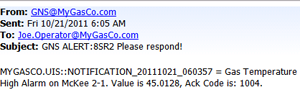
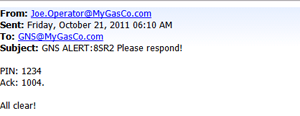
The following examples show a High Alarm Notification email, an Acknowledgment email, and a Successful Acknowledgment Reply email from the GNS.
|
|

|
||
| High Alarm Notification Email sent by the GNS |
Acknowledgment Email sent by Recipient |
Successful Acknowledgment Reply sent by the GNS (The PIN is obscured in the reply.) |
SMS gateway providers may handle email replies differently. You may need to type both the Ack ID and PIN in the above format and test how your SMS gateway provider handles replies.
Some SMS gateway providers limit messages to 160 characters. Others do not. Using tokens to compose your outgoing notification message may increase the size of the reply message beyond the 160 character limit. Since the Ack ID is appended to the end of the message, it may be truncated.
Some SMS gateway providers send email replies via the email address tied to the provider's account. You will need to add that email address to the GNS PIN Manager list and test how your provider handles email replies.
If the acknowledgment email is unsuccessful for any reason, you will receive an email indicating this, and the reason. The reasons are explained in the following table.
| Failure Reason | Explanation |
|---|---|
|
Acknowledgment code was not found. |
The notification indicated by the Ack ID in the acknowledgment email was already acknowledged by another method or it never existed. |
|
Security denied. |
The user does not have permission to acknowledge the event associated with the Acknowledgment ID. You must have at least Level 3 authorization (Add) for the GNS service’s QUEUE event to acknowledge a notification. See GNS Security Reference for more information. |
|
Email address or PIN is incorrect. |
The system could not map the recipient's email address and PIN pairing to a username. See Configuring a PIN for more information. |
|
PIN is not in message. |
The string "Pin: ####" or "Pin ####" was not found in the acknowledgment email message. |
|
Acknowledgment code not in message. |
The string "Ack: ####" or "Ack ####" was not found in the acknowledgment email message. |
|
The email address has been locked out. |
The recipient's email address has been locked out because the number of email address and PIN combination attempts has exceeded the number configured for the PIN_LOCKOUT_MAX_ATTEMPTS keyword. See Email Lockout for more information about this security feature. |
Both successful and unsuccessful acknowledgment emails are logged as events in the configured ELS, if "CONTROL" is enabled for the LOGMASK_ELS keyword in the Gns.cfg file. The events will be logged to the service log file if "PROG_STAT" is enabled for the LOGMASK_FILE keyword. See GNS Configuration File Keywords for more information about these keywords.
In the ELS, the Event Type is O for Operational and the Category is GNS for both the "SMTP Mail Sent" and "Email Ack received" events. The details for the "Email Ack received" event indicate the time the email acknowledgment was received, the Ack ID, the User ID, and the From address.
|
|
|

